


You can manage your account information and Network subscription through your Network account, including updating your profile and communication preferences, changing your payment information, canceling automatic renewal and managing your sub-accounts.
Update Your Information
You can update your name, email address and billing address through your Network account.
Update Your Profile
- Select your profile icon in the upper-right corner of the Network.
- Select Account.
Edit Your Information
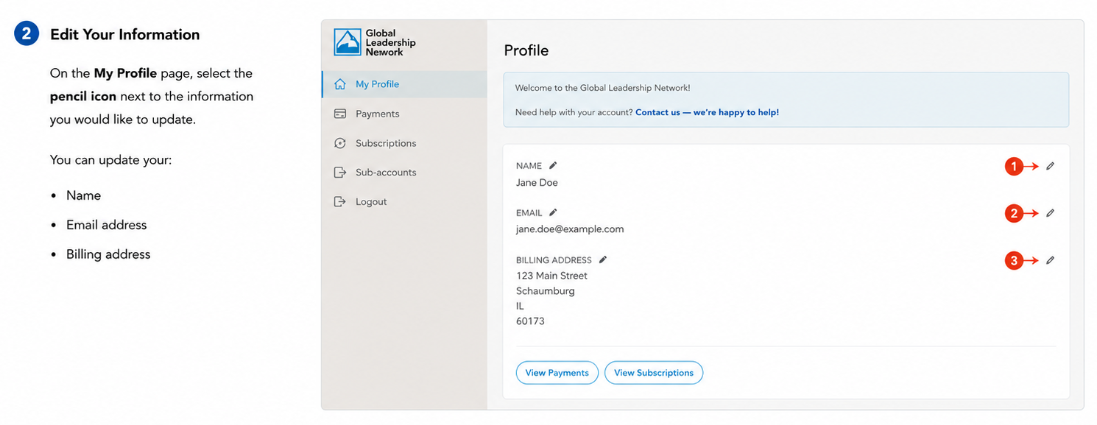
On the My Profile page, select the pencil icon next to the information you would like to update.
You can update your:
- Name
- Email address
- Billing address
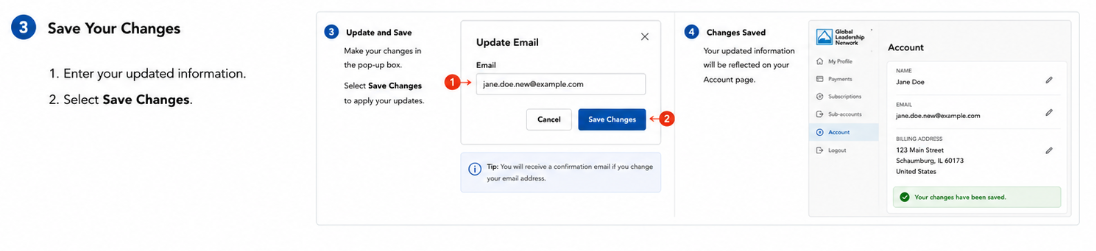
Save Your Changes
- Enter your updated information.
- Select Save Changes.
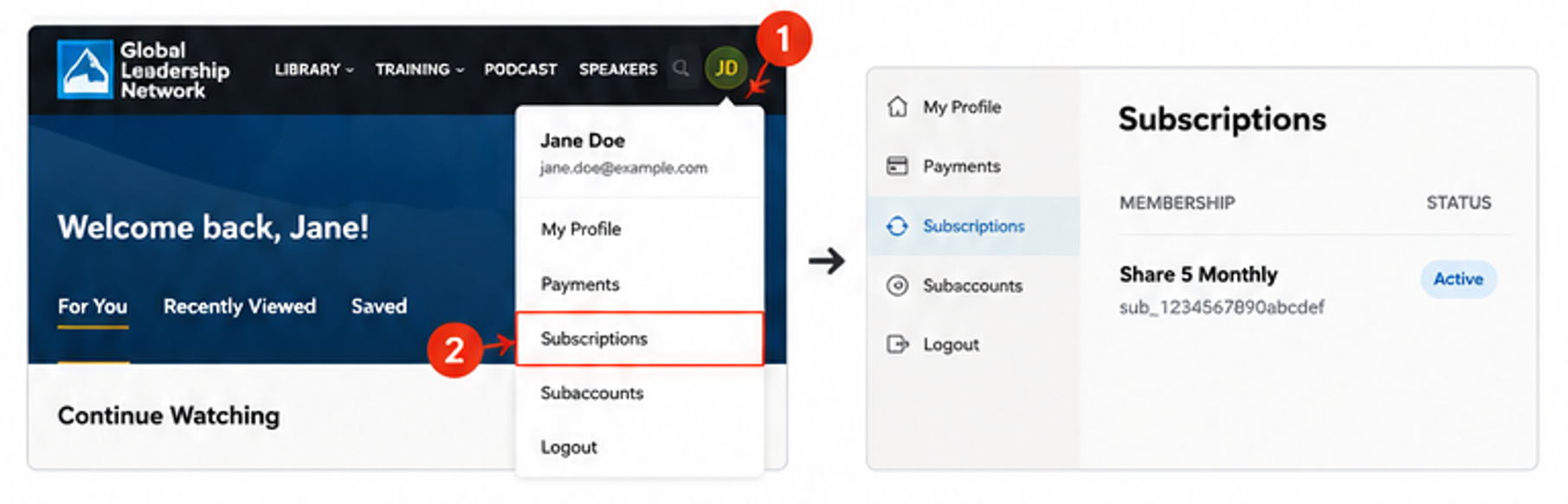
To access your subscription details:
- Select your profile icon in the upper-right corner of the Network.
- Select Subscriptions.
From the Subscriptions page, select the three-dot menu (⋮) next to your subscription to access available actions.
Update Your Payment Information
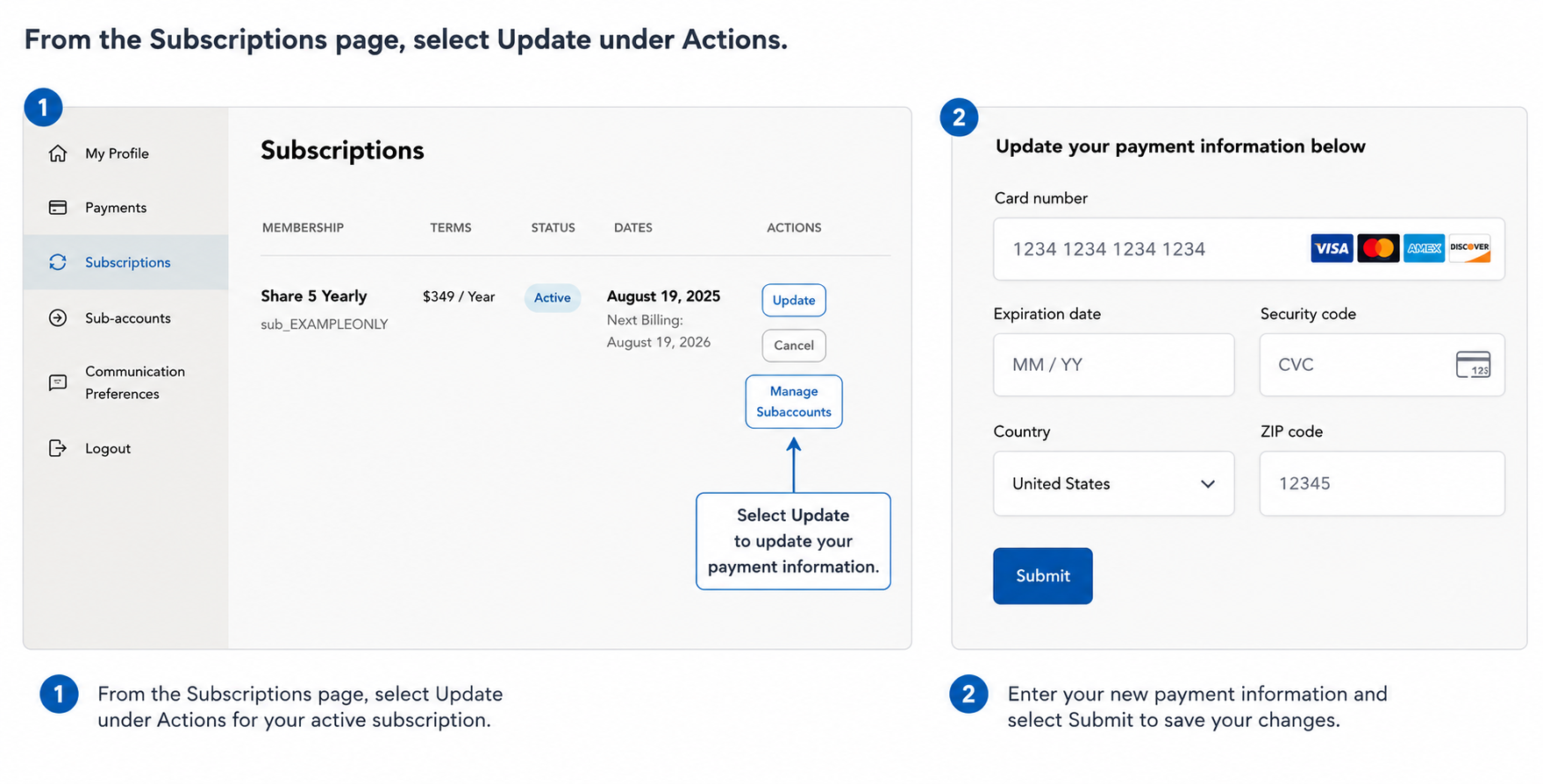
To update the payment method used for your Network subscription:
- From the Subscriptions page, locate your active Network subscription.
- Under Actions, select Update.
- Enter your new payment information.
- Select Submit to save your changes.
Your updated payment method will be used for future subscription renewals.
Cancel Automatic Renewal
To stop your subscription from renewing automatically:
- Select the three-dot menu (⋮) next to your subscription.
- Select Cancel.
- Confirm your selection.
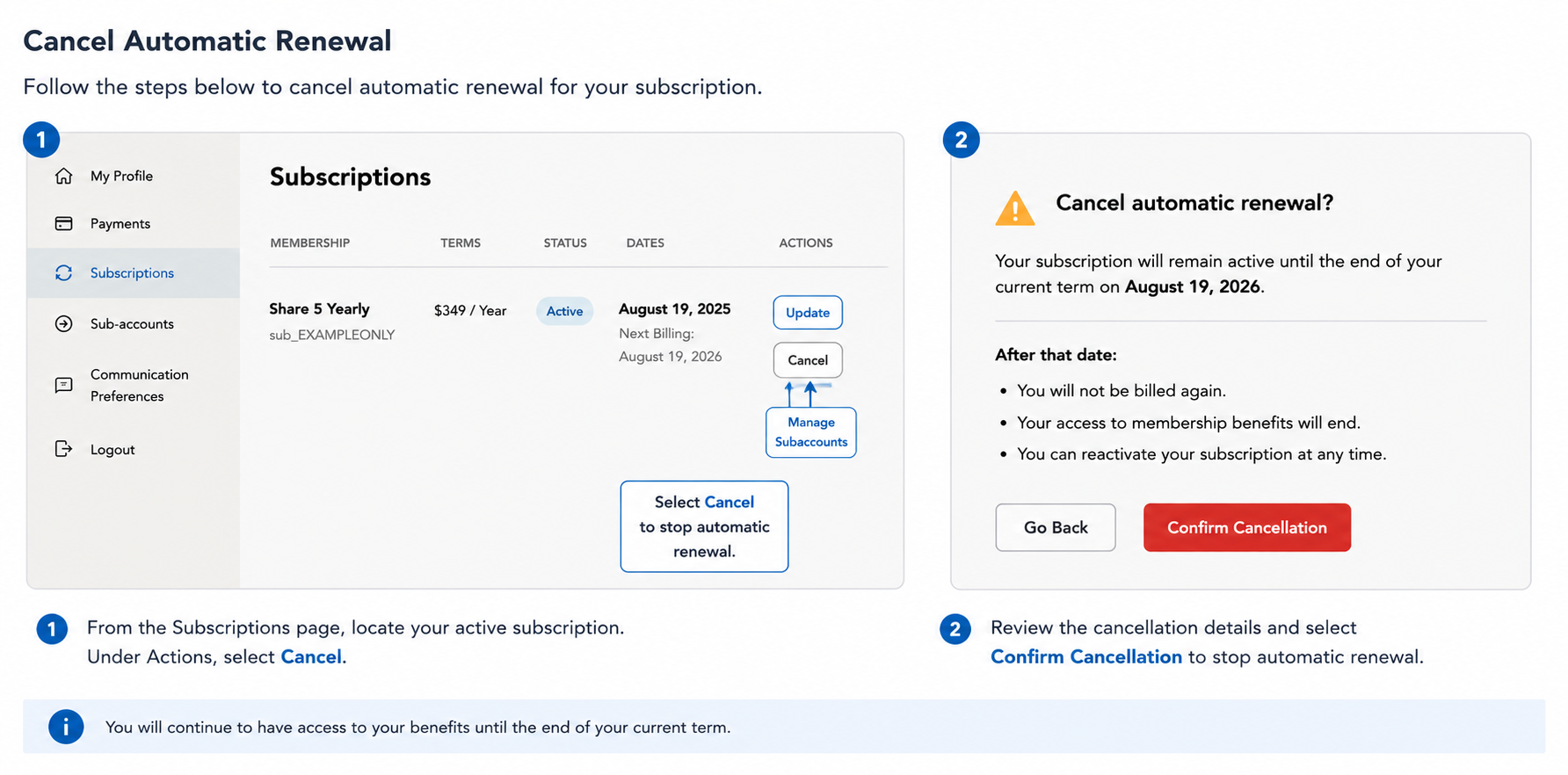
Important: Canceling your subscription does not immediately end your access or issue a refund. Your subscription will remain active through the end of your current billing period. It will not renew automatically.

Manage Sub-Accounts
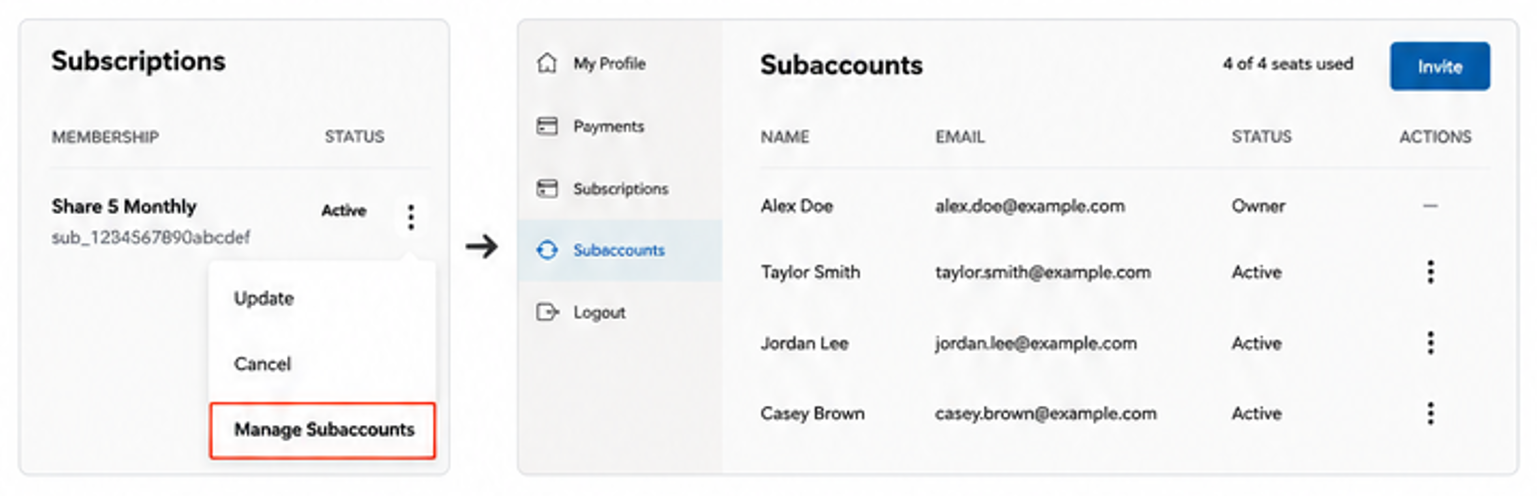
Select Manage Subaccounts to add, remove or manage the people connected to your subscription.
For step-by-step instructions, see How Do I Share Network Access?
Manage Your Communication Preferences
You can manage the email and text communications you receive from the Global Leadership Network within your Network account.
Manage Your Daily Leadership Text
Want to receive leadership encouragement right on your phone?
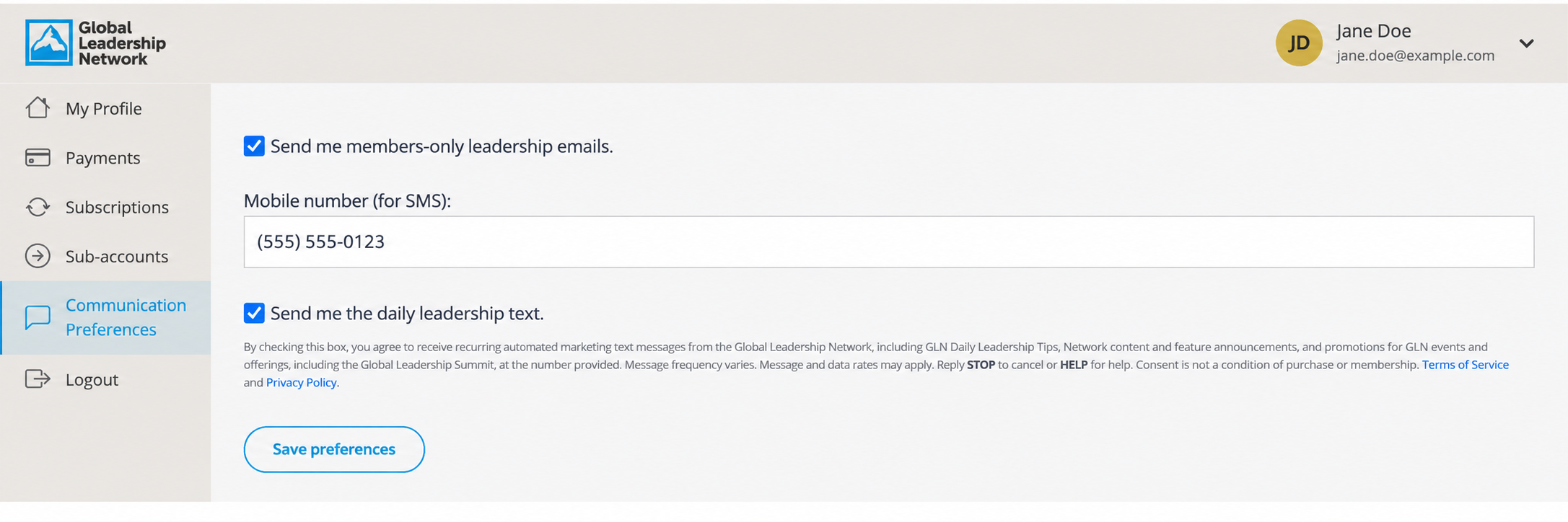
- Select Communication Preferences from the menu.
- Check or uncheck Send me members-only leadership emails based on your preference.
- Add or update your mobile number under Mobile number (for SMS) if you would like to receive text messages.
- Check or uncheck Send me the daily leadership text to opt in or out.
- Select Save preferences.
Note: By opting in, you agree to receive recurring automated marketing text messages from the Global Leadership Network, including the Network Daily Leadership Tips, content and feature announcements. Message and data rates may apply. Reply STOP to cancel or HELP for help. Additional terms are provided directly within your Communication Preferences.
Reminder: Save Your Changes
After updating your email or text preferences, be sure to select Save preferences.
Need Help?
If you experience any issues managing your Network subscription and account, please contact our Support team.

