


 6
6
You can manage your subscription through your Network account, including updating your payment information, canceling automatic renewal and managing your sub-accounts.
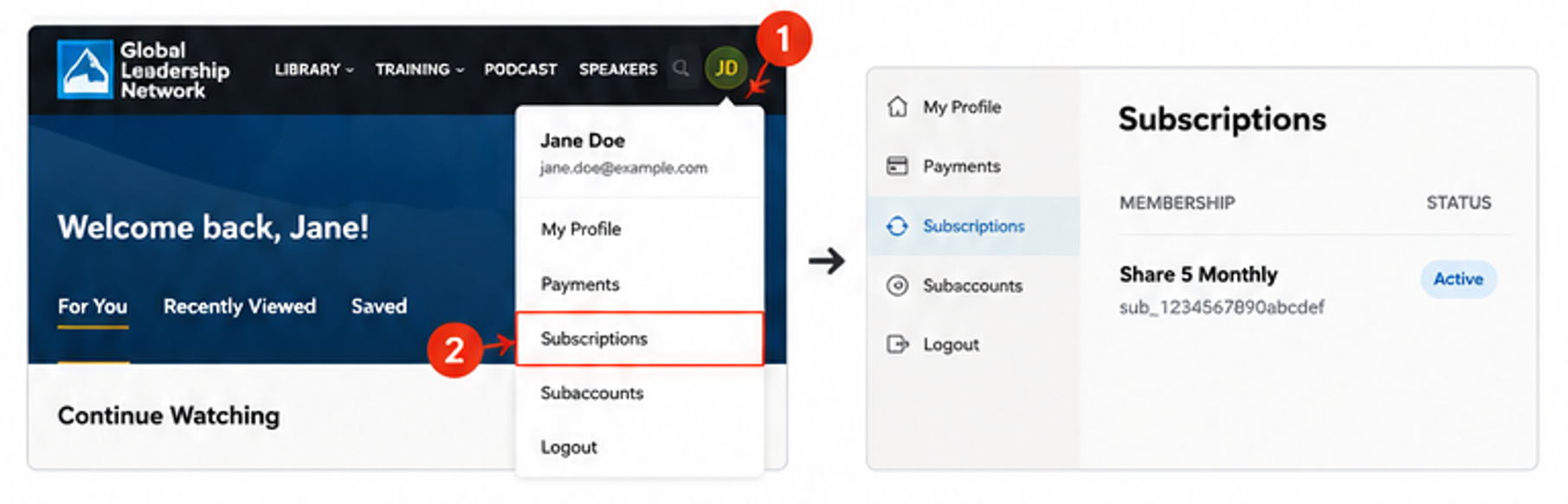
To access your subscription:
- Select your profile icon in the upper-right corner of the Network.
- Select Subscriptions.
From the Subscriptions page, select the three-dot menu (⋮) next to your subscription to access available actions.
Update Your Payment Information
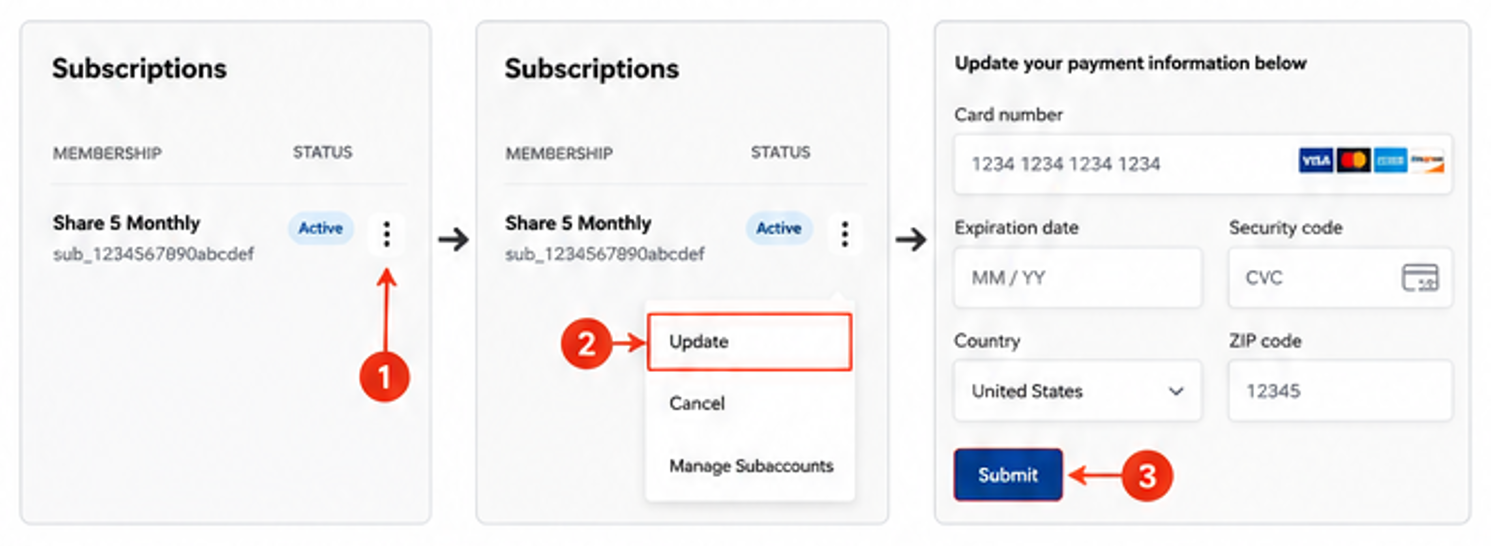
To update the payment method used for your subscription:
- Select the three-dot menu (⋮) next to your subscription.
- Select Update.
- Enter your new payment information.
- Select Submit to save your changes.
Your updated payment method will be used for future subscription renewals.
Cancel Automatic Renewal
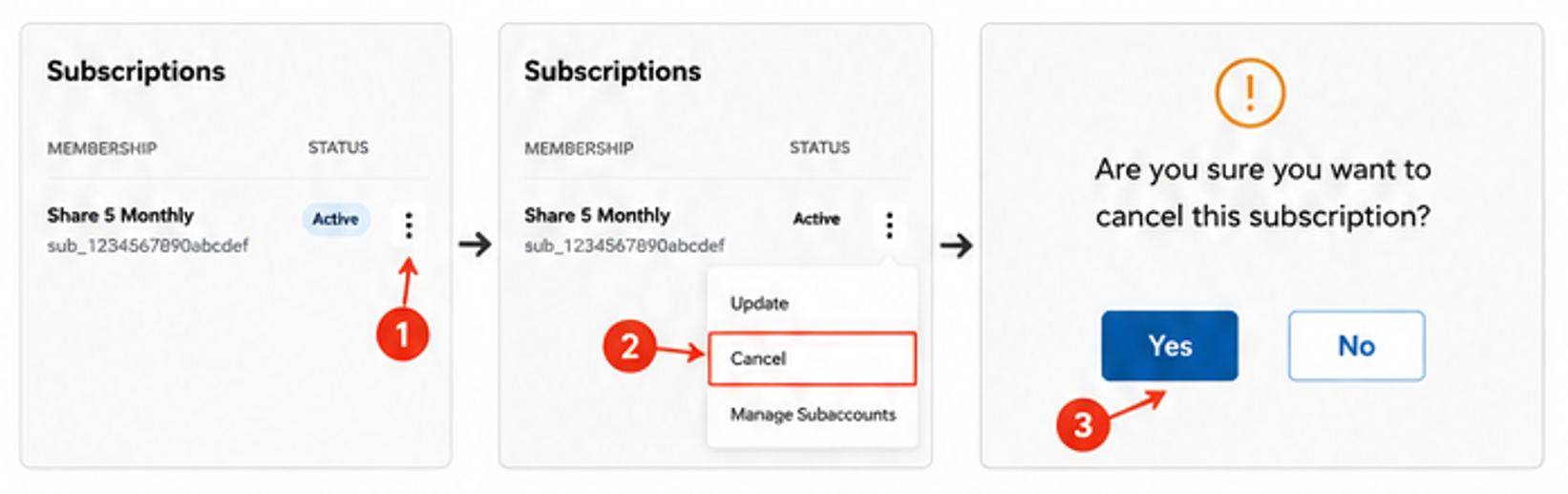
To stop your subscription from renewing automatically:
- Select the three-dot menu (⋮) next to your subscription.
- Select Cancel.
- Confirm your selection.
Important: Canceling your subscription does not immediately end your access or issue a refund. Your subscription will remain active through the end of your current billing period. It will not renew automatically.

Manage Sub-Accounts
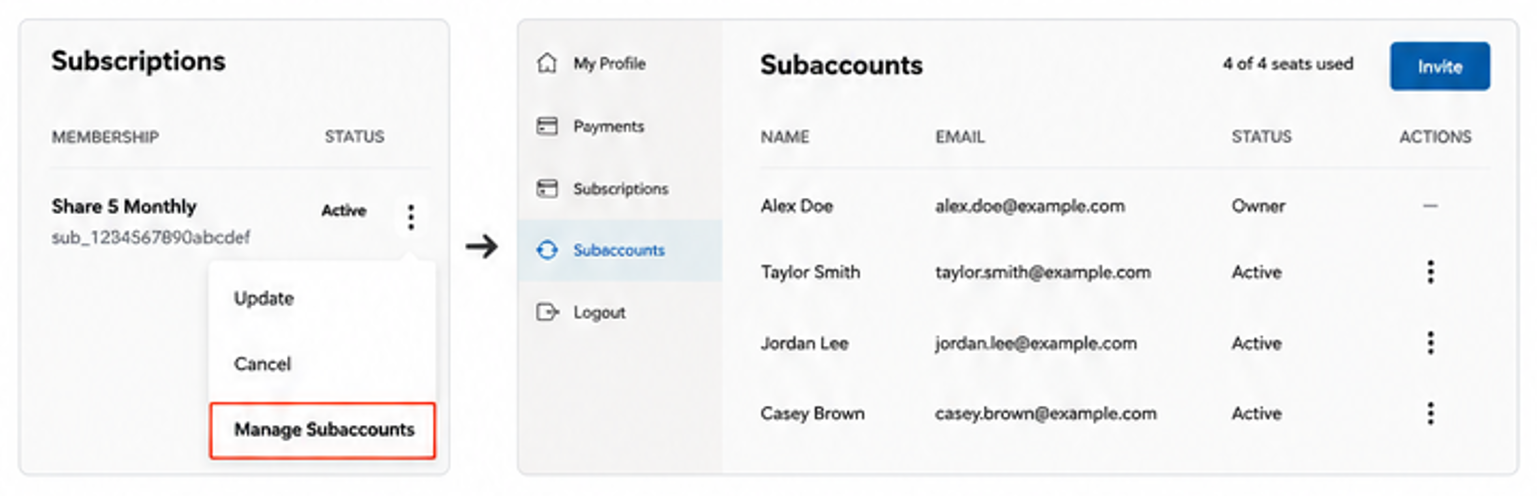
Select Manage Subaccounts to add, remove or manage the people connected to your subscription.
For step-by-step instructions, see How Do I Share Network Access?
Need Help?
If you experience any issues managing your subscription or payment information, please contact our Support team.

